
Pet diary guide
Getting started and signing in
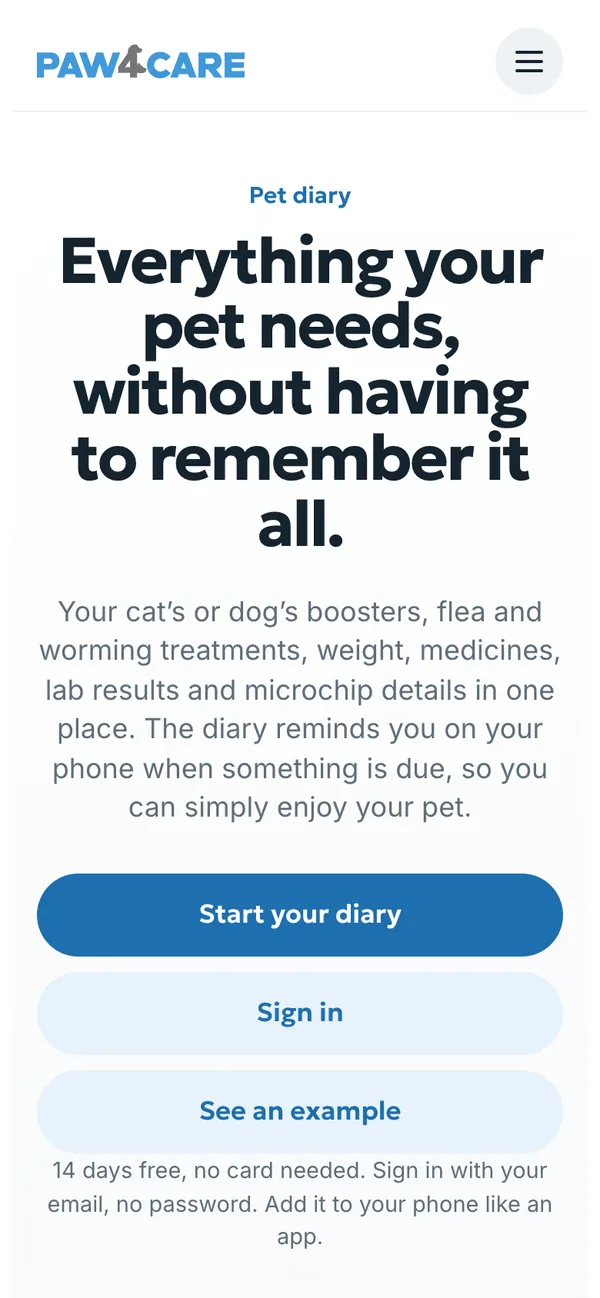
The pet diary opens in your web browser at paw4care.com/pet-diary. There is nothing to download from an app store and no password: you sign in with a code sent to your email.
What the pet diary is
In the pet diary you keep your cat’s or dog’s health and day-to-day care in one place: vaccinations and boosters, flea, tick and worming treatments, medicines, weight, wellbeing, vet visits, lab results and paperwork from your vet. The diary reminds you when something is due and keeps everything together, so it is to hand at the vet’s, when you travel and when your pet stays with a sitter.
One diary can hold as many cats and dogs as you like, and the whole family can use it on their own phones.
How to start
- Open paw4care.com/pet-diary and tap Start your diary. If you already have a diary, tap Sign in.
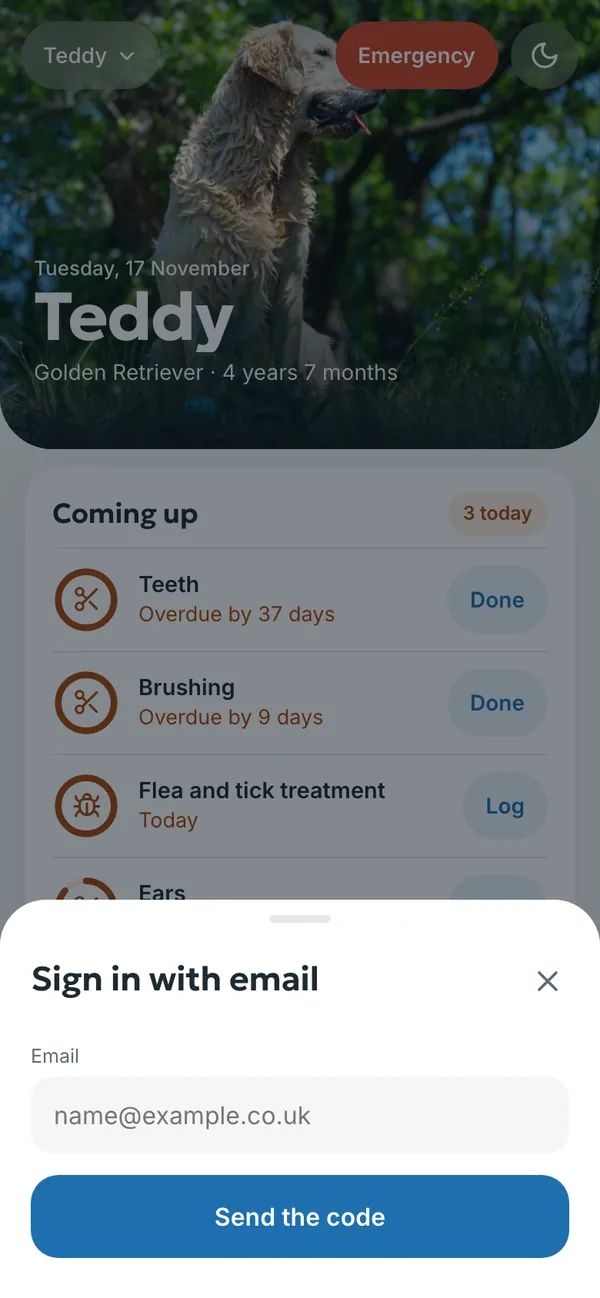
- Enter your email address and tap Send the code.
- Open the email and type the 6-digit code into the Code from the email field. The email usually arrives within a minute; if it doesn’t, check your spam folder. You can ask for a new code with Send again.
- A new email address starts a new diary. With an address you have used before, your own diary opens on any phone or computer.
- Add your pet: a name and whether it is a cat or a dog are enough. Everything else is optional and can be filled in later.
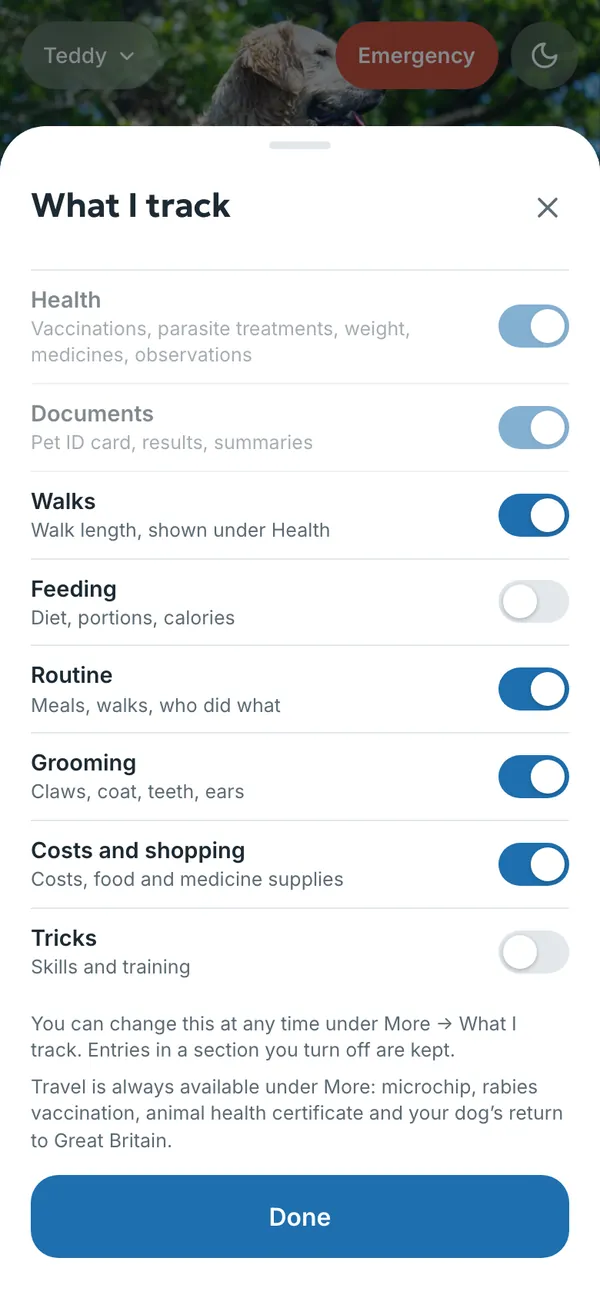
- Choose what you want to track. Health and Documents are always there. Walks, feeding, routine, grooming, costs and tricks are optional, and you can change your choice at any time under More → What I track.
Your email address is used for signing in and, if you like, for reminders. We don’t send newsletters.
Try the example first
See an example opens a diary filled in for a made-up dog called Teddy, without signing in. You can tap anything in the example and nothing is saved. The screenshots in this guide come from the same example.
How the diary is laid out
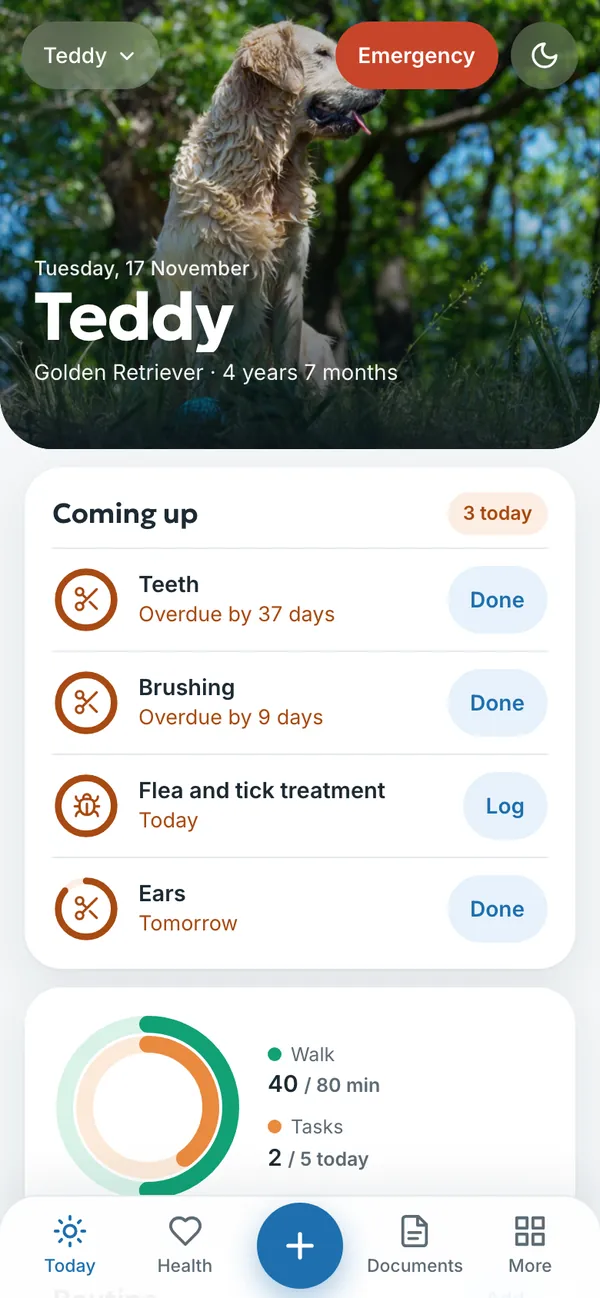
On a phone, the menu at the bottom of the screen has four sections and a plus button in the middle:
- Today – the home screen: what is coming up, today’s tasks, walks, weight and wellbeing. Whatever needs doing now is always at the top.
- Health – weight, wellbeing, vaccinations and parasite treatments, medicines and symptom logs.
- + – a new entry, for example weight, wellbeing, a vaccination, a medicine, a symptom, a visit, a lab result, a document, a note, a walk, a cost or a task.
- Documents – the pet ID card, lab results and other paperwork.
- More – all the other sections: routine, calendar, grooming, costs and shopping, for the vet, family, history, just in case, travel, settings and subscription.
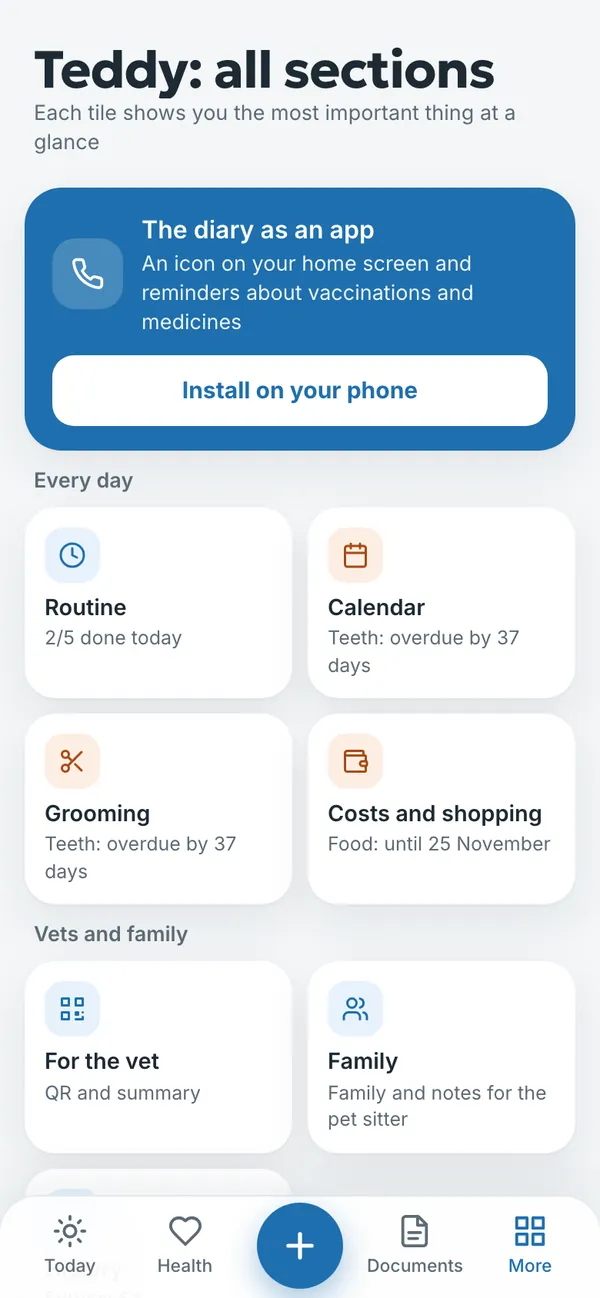
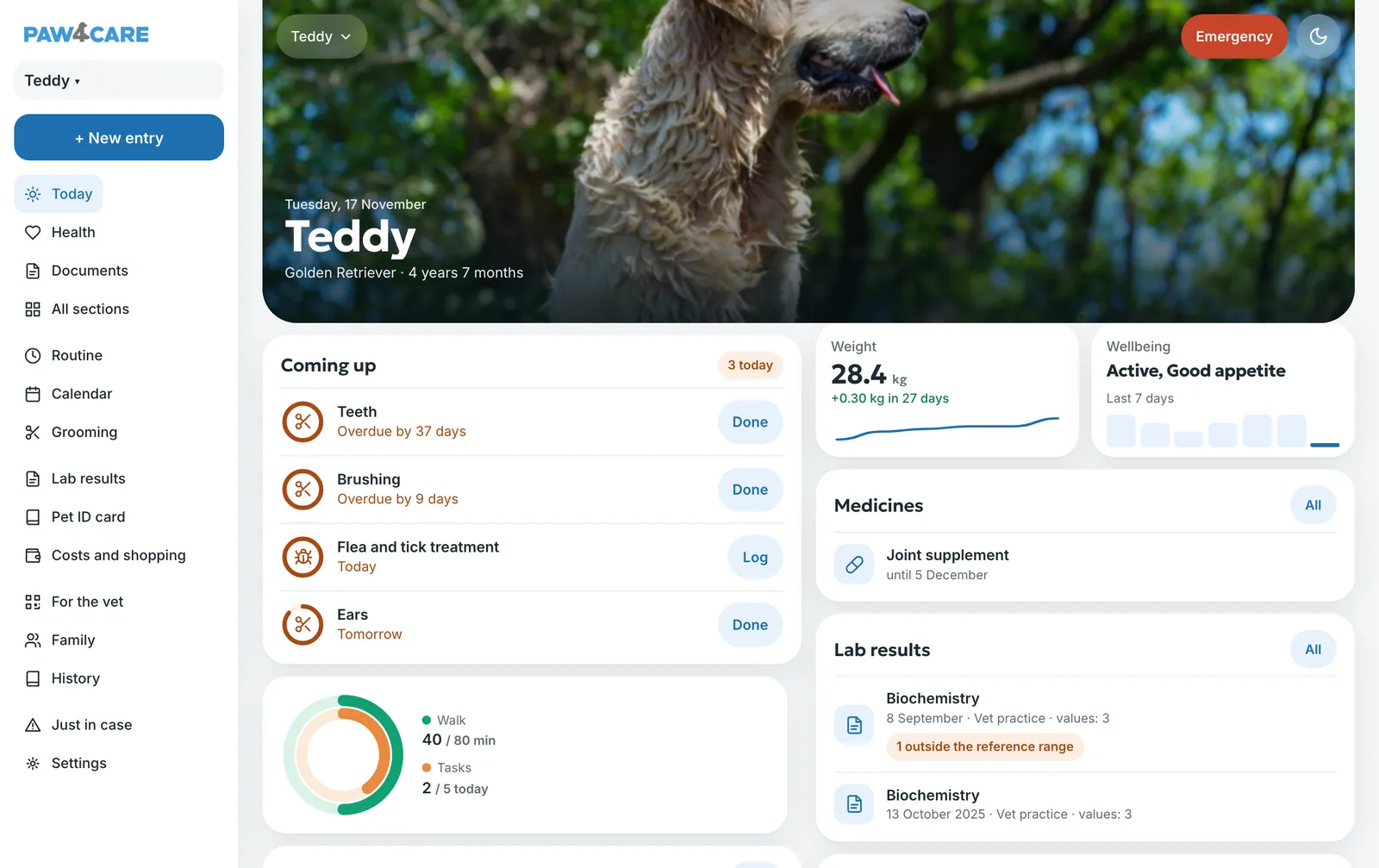
You can add the diary to your phone’s home screen, so that it opens like an app and reminders arrive as notifications. See Reminders and notifications.
Try it yourself
In the example you can tap anything without signing in. Your own diary: 14 days free, no payment card.
The service is provided by TECHNOLOGY-R2 LLP, info@paw4care.com. Pricing · Terms of Service · Cancellation and Refund Policy · Privacy Policy · Contact
Guide updated 17 November 2026